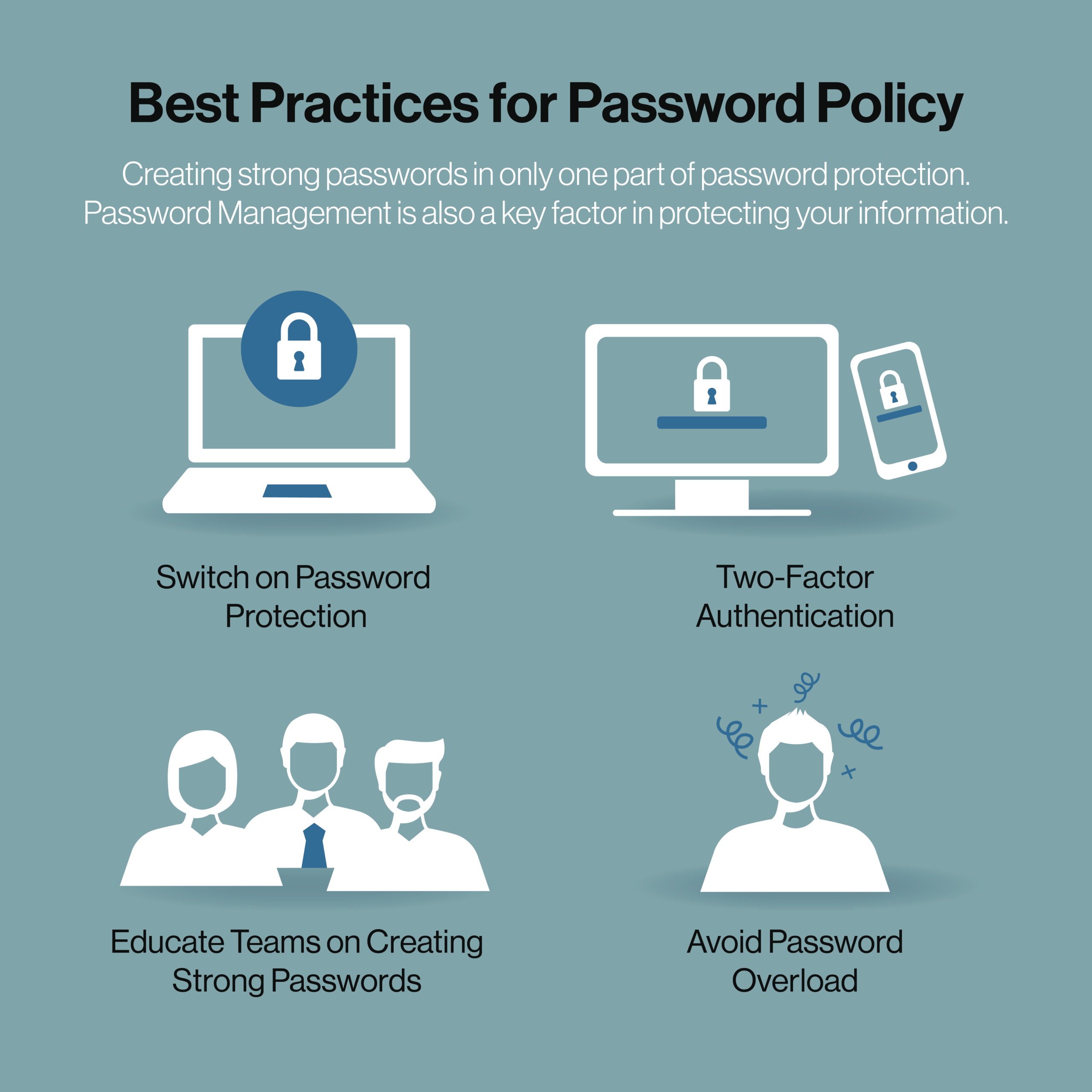
Good password hygiene gets a lot of attention, and for good reason. Turn on a password manager. Enable two-factor authentication. Train your team to build strong, unique logins instead of reusing the same one everywhere. Watch out for password overload — the point where people have so many logins to manage that they start cutting corners just to keep up.
All of that is genuinely good advice. It’s also incomplete.
Every one of those practices is about protecting a password while it’s in use. None of them address what happens to that password once the device holding it gets old, breaks, or gets replaced. And for most businesses, that’s the exact moment the risk shows up.
What’s Actually Sitting on That Old Computer or Phone
Think about everything a laptop or phone accumulates over a few years of daily use:
- Saved usernames and passwords in the browser’s autofill
- Email accounts that are still logged in
- Saved Wi-Fi networks and their passwords
- Cached login tokens for cloud apps, CRMs, and accounting software
- Authenticator app data or backup codes for two-factor authentication
- VPN and remote access configurations
Every strong password your team created following the advice above is probably sitting on that device in plain, retrievable form — because saving it there is exactly what makes it convenient to use every day.
Does a Factory Reset Actually Delete That?
Not the way most people assume.
A standard factory reset or “delete files and empty the recycle bin” tells the operating system to mark that storage space as available to be overwritten. It doesn’t physically erase the data — it just removes the pointer to it. Until something else is written on top of it, the underlying information is often still recoverable with widely available data recovery tools, no special expertise required.
That’s true for a personal laptop. It’s a much bigger problem for a business, because one retired device rarely holds just one person’s information. It can hold saved logins for shared drives, client management systems, financial software, and email accounts still tied to a former employee.
Why This Is a Bigger Problem Than Password Overload Alone
Password overload is what happens when people are asked to manage more logins than they can reasonably keep track of. The common coping habits — saving everything in the browser, reusing credentials across systems, writing logins into a spreadsheet — are understandable, and they’re also exactly what turns one old hard drive into a master key.
If a device retirement policy stops at “make sure IT wipes it,” it’s missing the part of the password lifecycle that actually creates the most exposure. Educating your team on strong passwords should also mean educating them on what happens to those passwords when a computer, laptop, or phone reaches end of life.
What Actually Destroys the Data
Wiping software, a factory reset, or tossing a hard drive in an e-waste bin all rely on the assumption that the data is gone once you can’t see it anymore. Certified destruction doesn’t rely on that assumption — it removes the possibility entirely.
At Richards & Richards, hard drives go through physical destruction: each drive is scanned and logged by serial number, then crushed and shredded using roughly 20,000 lbs of conical force that destroys the spindle and shreds the platters. CDs, DVDs, and backup tapes go through a separate media shredder that reduces them to fragments that can’t be reconstructed. There’s no reset to reverse and no recovery software that gets around it, because the physical media the data lived on no longer exists in a usable form.
Devices are collected under GPS-monitored chain of custody, manually dismantled, and processed according to NAID AAA guidelines — Richards & Richards is NAID AAA Certified for physical hard drive and solid-state device destruction at our Nashville facility — before the recyclable components are responsibly recycled. Every job comes with a certificate documenting exactly which drives, by serial number, were destroyed, so your compliance file has proof, not just an assumption.
Before You Get Rid of Any Old Device
- Sign out and deauthorize. Log out of cloud accounts, remove the device from any two-factor authentication apps, and revoke its access from company systems before it leaves the building.
- Note what needs to change. If the device had saved access to shared accounts, plan to rotate those passwords rather than assuming they’re no longer reachable.
- Don’t rely on a reset. Treat the wipe as a courtesy step, not the security step.
- Have the drive physically destroyed. This is the step that actually closes the gap — whether it’s a single retired laptop or a full office technology refresh.
Password overload isn’t solved by better habits alone. It’s solved by treating the entire lifecycle of a password seriously — including the moment the device holding it gets replaced.
If your business is retiring computers, phones, or other electronics, schedule a drop-off or pickup with Richards & Richards. We collect hard drives and other media from your office under documented chain of custody and physically destroy them at our NAID AAA Certified Nashville facility. On-site mobile shredding is available for paper. Call 615-242-9600 or get an estimate online before that next office clean-out.